Wallpanel OS 14.1.0
NewsWallpanel OS 14.1.0 with SIP and Home Assistant servers
A local SIP server, an experimental Home Assistant server, smoother calls in Linhome and new screen settings in Wallpanel OS 14.1.0.
Wallpanel can now do more than display a smart home dashboard: it can also run local services. Wallpanel OS 14.1.0 adds a SIP server for communication between devices and the option to run a small Home Assistant installation directly on the panel.
This release also improves everyday use: easier handling of door station calls, video and audio fixes in Linhome, a warmer screen in the evening and more predictable screen timeout behavior. The new Wallpanel Services app brings server management, backups and diagnostics together.
Wallpanel Services and local servers
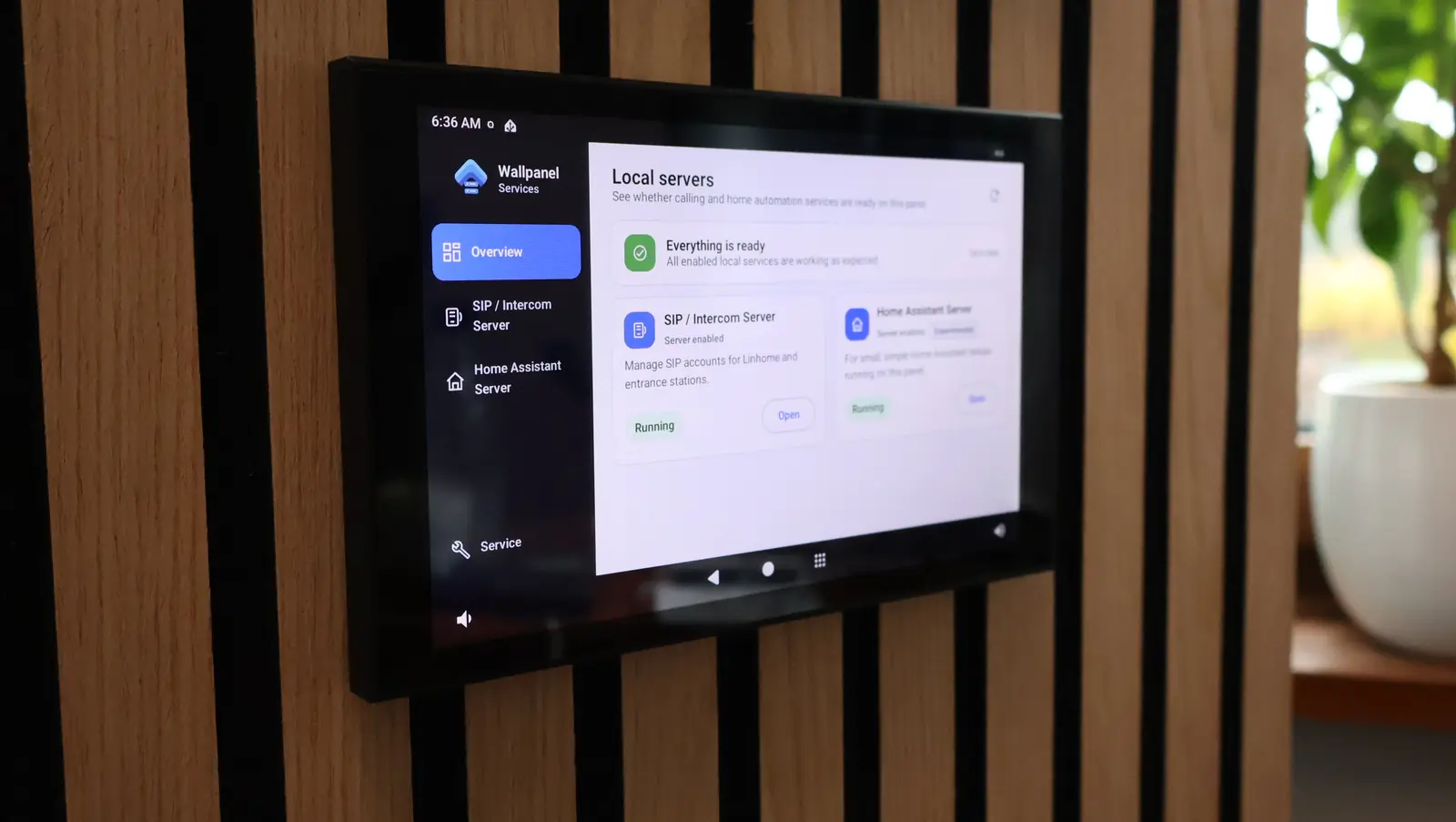
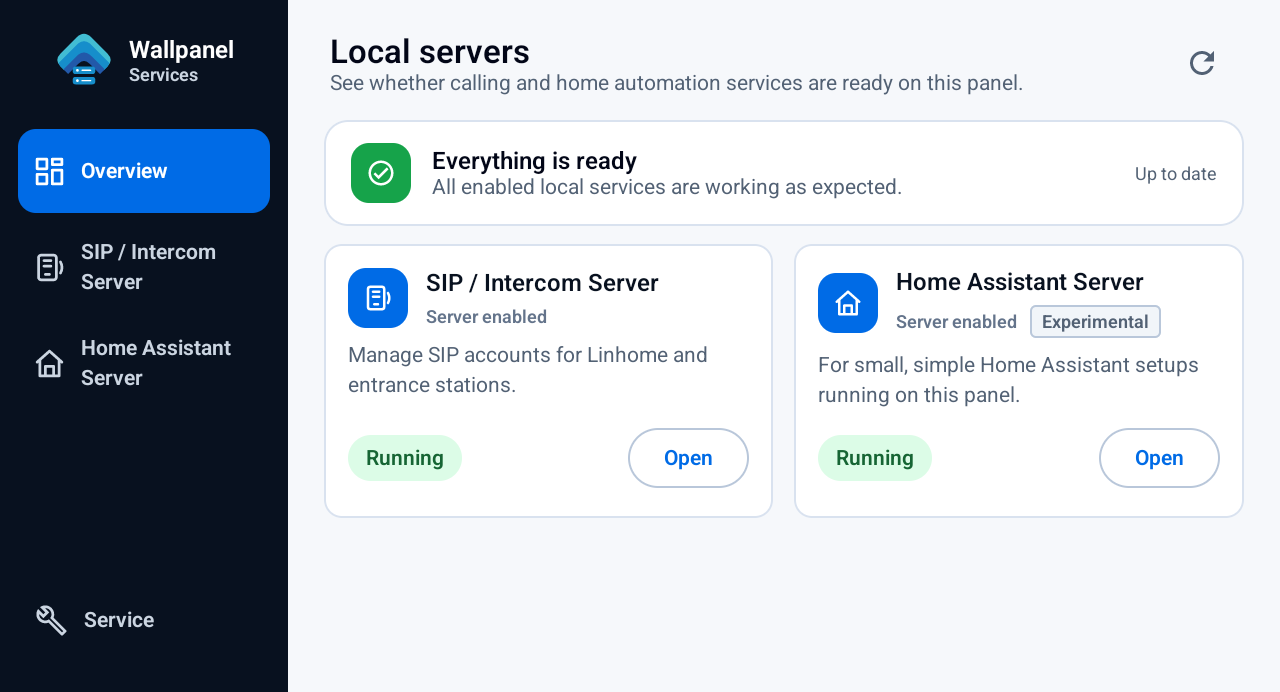
Wallpanel Services lets you start and stop services, check whether they are ready, and access configuration and service tools. Its overview shows the SIP and Home Assistant servers separately, making it easy to see which services are running.
 Enlarge screenshot in a new tab
 Wallpanel Services shows the status of the local SIP and Home Assistant servers in one place. Both optional services are already running in this screenshot.
The navigation, cards and forms adapt to S5, S8 and S10, the available space and the font size.
Both services are optional. On a fresh installation, they remain disabled until you start them. Home Assistant Server needs an internet connection on its first start to download the service image. The SIP server is already built into the system and does not need an external network connection.
A local SIP server on Wallpanel
The Asterisk-based SIP server enables calls between panels, door stations and other compatible devices on the local network. SIP is a standard used to establish voice and video calls. Wallpanel can act as the central server that these devices register with.
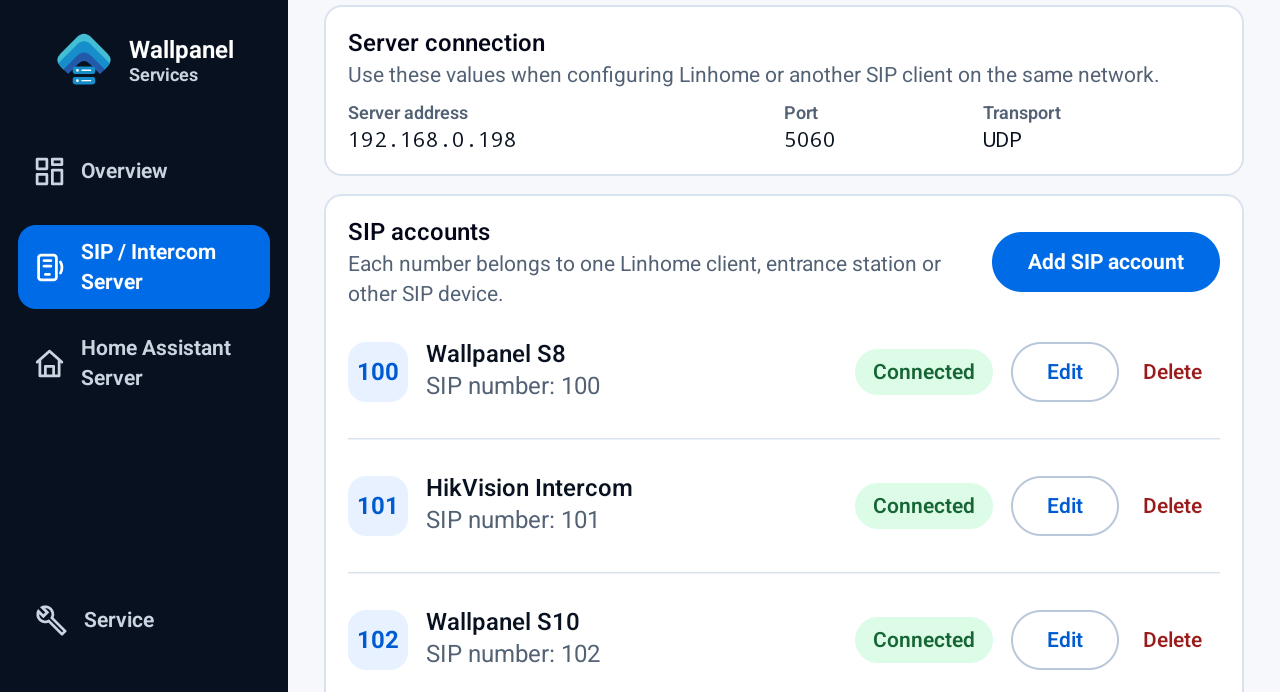
In Wallpanel Services, you can add and edit accounts, give devices meaningful names and check their current registration status. Accounts can also be configured while the service is disabled.
 Enlarge screenshot in a new tab
 An example setup with three registered devices. Each account has its own number, name and connection status.
It is worth distinguishing the two roles: the SIP server handles communication between devices, while Linhome, available in our F-Droid repository, is the app used to receive and handle calls on the panel. Call capabilities, including video availability, depend on device compatibility and the transmission formats they support in common.
The benefits of your own SIP server
Connecting devices that need a central server. Not every door station can call a panel directly using its IP address. Devices that work only as SIP clients need a server to register their accounts with. Linhome alone does not replace that server - Wallpanel can now take on this role. This is useful, for example, in installations with Hikvision door stations that register with an external SIP server.
Running your own SIP server on the panel also brings several practical benefits:
- No separate device for the SIP server. In a small installation, there is no need to run an additional computer or a dedicated SIP server appliance just to connect a door station to the panels. The service runs on a Wallpanel that is already part of the installation.
- Local calls without the cloud. SIP communication between compatible devices on the same network can work without internet access or an account with an external provider. It still requires a working local network and the Wallpanel hosting the server to remain powered on.
- Centralized management and easier diagnostics. Door station and panel accounts are collected in one place. You can give them meaningful names, check registration and inspect logs, rather than looking for the cause of a problem only in the app receiving the call.
Control over server development. We develop our own version of the server based on the open-source Asterisk project, tailored to Wallpanel. We control its configuration, system integration and the changes we make. This lets us improve compatibility with specific devices, investigate server-side issues and develop call handling alongside Linhome and Wallpanel Services. It also provides a foundation for adding more features in future releases.
Linhome and easier door station calls
We are also developing the version of Linhome supplied for Wallpanel. The changes cover both how calls are presented and how the app behaves during video preview and conversation.
The call screen above other apps
The new “Full-screen incoming calls” setting automatically opens the incoming call screen while you are using another app, such as a Home Assistant dashboard. This option is enabled by default.
 Enlarge screenshot in a new tab
 Linhome’s new option opens the call screen over the app you are using. Only the relevant part of the settings is shown here.
When a call is shown as a banner, the banner stays visible for as long as the call is waiting to be answered. The “Hide” button dismisses the banner without rejecting the call. You can still return to it from the notification panel.
We have also improved what happens after a call answered while using another app ends. The panel returns to the previous view, such as your dashboard, instead of remaining in Linhome.
Previewing the door station before answering
We have refined the transition from video preview to conversation so that pressing “Answer” preserves the working video stream. We have reduced unnecessary changes to call parameters that could cause video to be lost.
While an incoming call is waiting to be answered, the app blocks audio from the local microphone from being sent. You can check the door station’s video preview before starting the conversation.
More reliable ringing and media transmission
We have increased the app’s default incoming call timeout to 70 seconds. This provides enough margin for the full 60 seconds of ringing configured on the SIP server. It does not force every door station to ring for 70 seconds - call duration also depends on the server configuration and the other device.
The fixes also reduce cases where changes to media parameters or the absence of audio during preview could end ringing prematurely. We have cleaned up local network call settings, including the removal of old STUN configuration that could send media to the wrong addresses or ports. These changes also apply to installations updated from earlier versions.
The device list now refreshes more reliably when app screens are reopened. We have improved the display of synchronization progress and fixed cases where outdated error messages would appear again.
Home Assistant Server without a separate computer
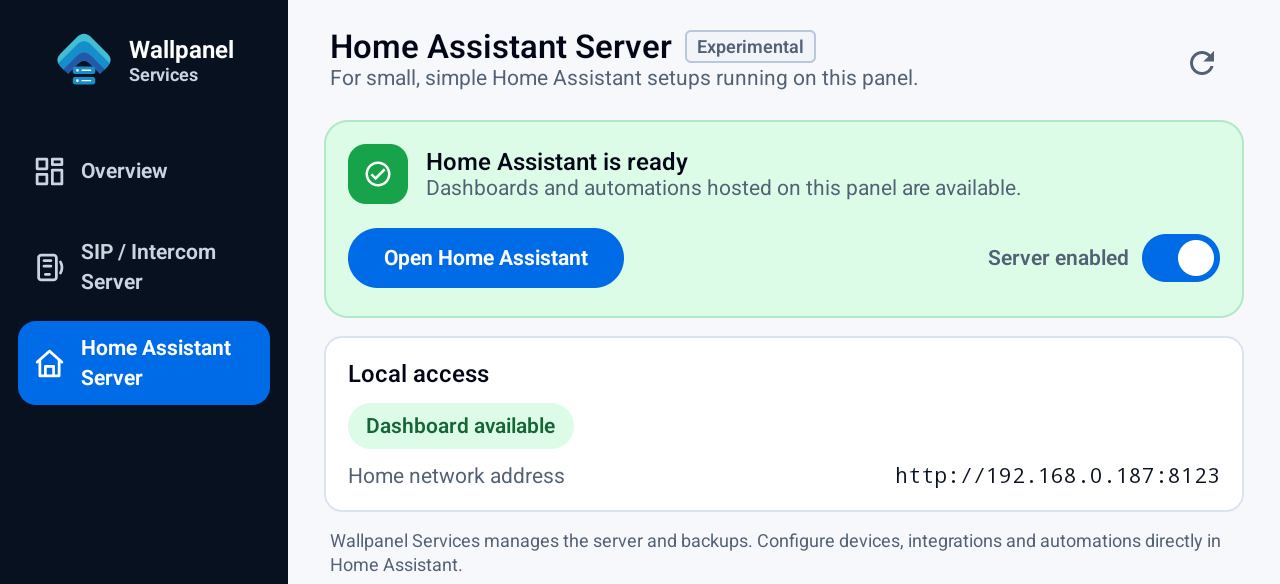
The second service available in Wallpanel Services is Home Assistant Server. It lets you run a small home automation installation without a separate computer acting as the server. Once the service has started, the app shows whether it is ready and its local network address, and lets you open the Home Assistant interface.
This feature is marked Experimental and is intended for small, simple setups. We use Home Assistant Container, without the Supervisor or the add-on catalog available in Home Assistant OS. The server and the panel interface share the same device’s resources, which should be taken into account when planning an installation.
 Enlarge screenshot in a new tab
 The service screen shows its readiness and local network address. The Experimental label remains visible next to the server name.
Wallpanel Services manages the service and its backups. Devices, integrations, dashboards and automations are configured directly in Home Assistant.
Backups and restoration
We have added configuration backup and restore options to service management. For the SIP server, backups include settings and account data. For Home Assistant, you can create a configuration backup or a more comprehensive data backup that also includes history and media.
Saved files are checked for integrity before restoration. Backups and mechanisms for rolling back unsuccessful changes help protect a working configuration when changes are made.
A warmer screen in the evening
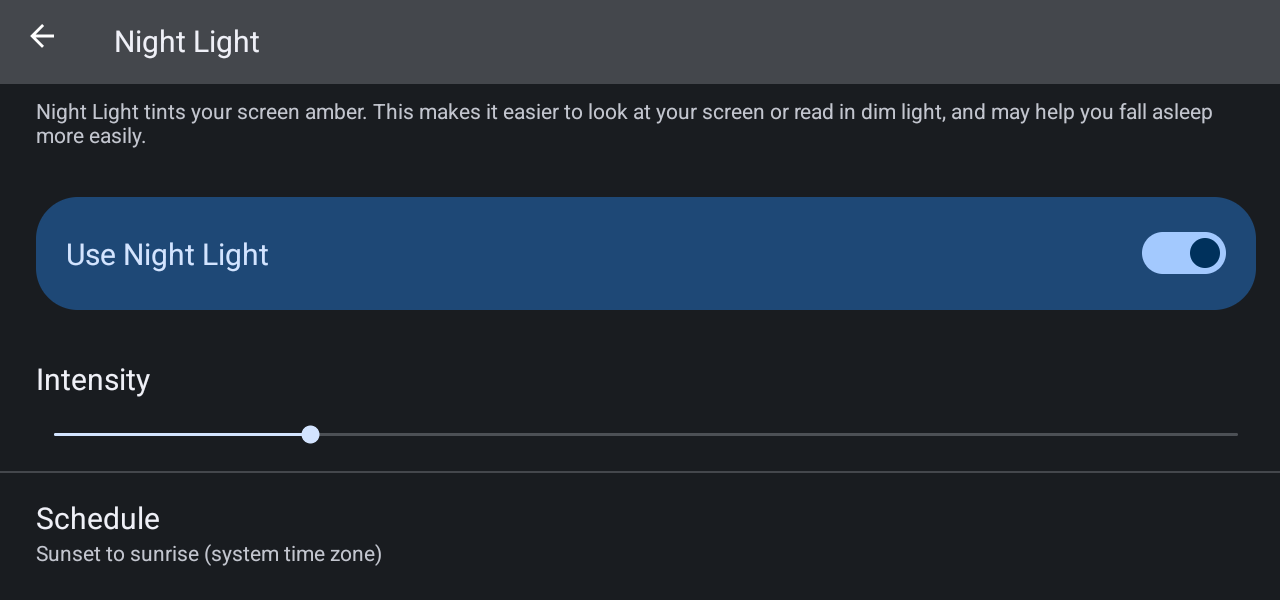
The new Night Light feature, available in the display settings, gives the screen a warmer tint. It is also available from Quick Settings. You can turn it on manually, set your own hours or choose a sunset-to-sunrise schedule.
 Enlarge screenshot in a new tab
 The intensity of the warmer tint and when it turns on can be adjusted in the Night Light settings.
The solar schedule does not use GPS or require location access. Times are estimated for a city associated with the system time zone, rather than the panel’s exact location. The settings show the calculated times and let you adjust when the feature turns on and off.
Presence sensing and screen timeout
We have improved how the presence sensor works with Android. The sensor now reports presence through standard system mechanisms and no longer imposes its own independent 30-second timeout before the screensaver starts. Screen timeout is controlled by the system configuration.
We have also disabled, by default, the mechanism that automatically extended the time the screen stays on to 10 minutes after its brightness was restored repeatedly.
In this context, it is worth revisiting a setting in our version of Home Assistant Companion: “Keep screen on during video playback”. It lets you choose whether a video or camera stream should prevent the screen from timing out. With this option disabled, video playback alone no longer blocks the system screen timeout. We covered it in our previous Wallpanel OS update article.
 Enlarge screenshot in a new tab
 This toggle determines whether a playing video or camera stream keeps the screen on.
Diagnostics and problem reporting
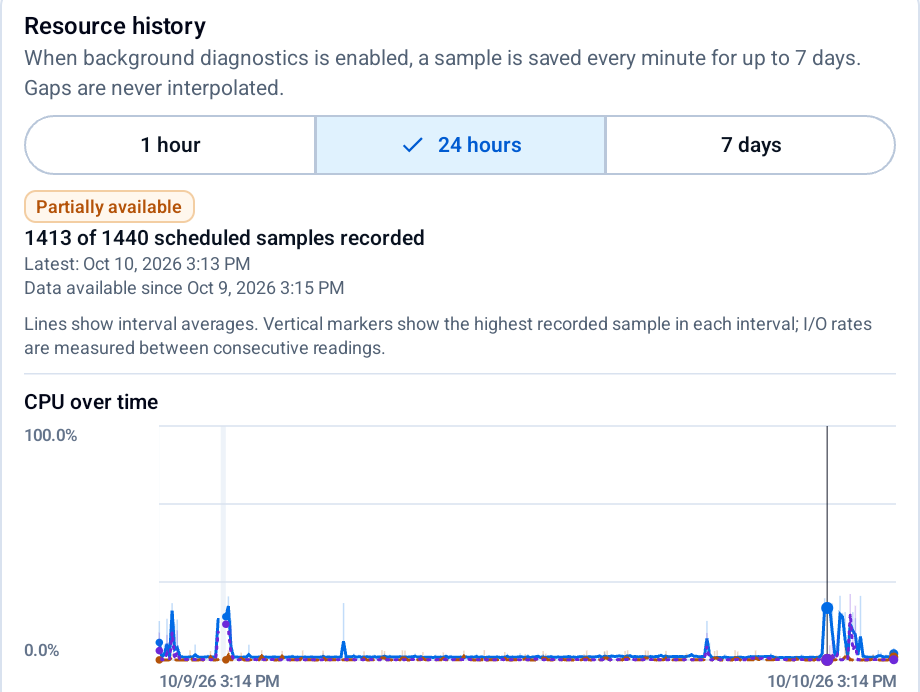
Service Mode in Wallpanel Services provides access to service status, CPU and memory usage, and logs. Enabling background diagnostics provides a measurement history covering up to seven days. Background diagnostics is disabled by default.
 Enlarge screenshot in a new tab
 An example of CPU usage history. The app also indicates when the collected measurements are incomplete.
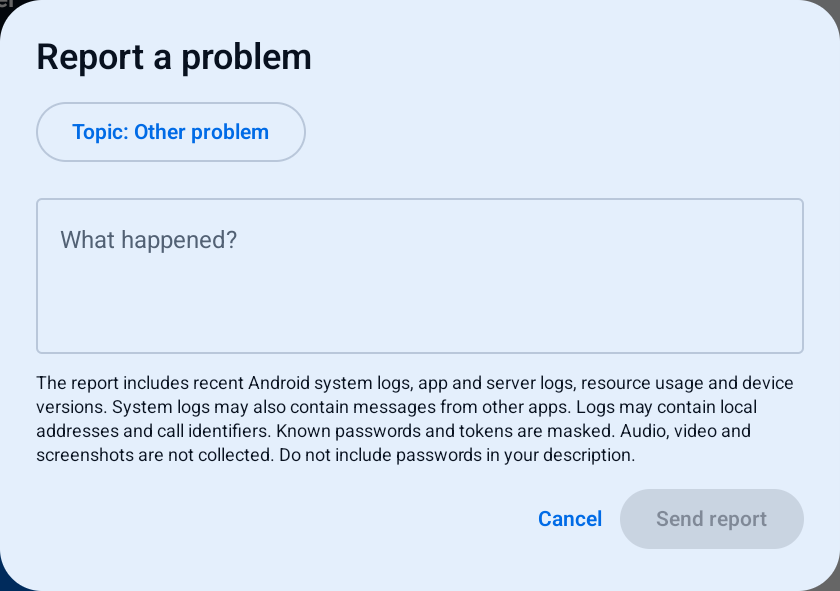
You can send a problem description together with diagnostic data from the app and receive a report ID. This helps investigate issues that are difficult to reproduce from a description alone.
Reports do not collect audio or video recordings, images or screenshots. Filtering masks recognized passwords and tokens, but logs may contain information such as local addresses and call identifiers.
 Enlarge screenshot in a new tab
 Before sending a report, you can describe the issue and check which diagnostic data will be included.
Release 14.1.0 and the new version numbering
Wallpanel OS 14.1.0 is now available for S5, S8 and S10. The system is still based on Android 14 - the first part of the release number now identifies the Android version underlying Wallpanel OS. This will make releases easier to distinguish when we move to a newer Android base, which is planned for the near future.
Local SIP and the experimental Home Assistant Server expand the panel’s capabilities while remaining services you enable as needed. The Linhome, screen settings and diagnostics improvements further develop its everyday role as a home control panel.